From Matt Miller at Ditch That Textbook
DOCUMENTS
1. Shared notes. Students often have lots of information to share with each other when they work together as a group. By sharing a document with group members, they can all add ideas and resources — and see everyone’s changes in real time. Teachers can use this in committee work and at staff meetings.
2. Rethinking rough drafts. With the comments feature in Documents (and other Google Apps), rough drafts aren’t a paper students submit to a teacher. They’re a process. Teachers can guide students throughout the entire writing assignment so there are no surprises when it’s time to turn work in.
PRESENTATIONS
3. Shared presentations. Create a presentation with one slide per student and give students permission to edit it. Then assign an activity — some quick Internet research, a writing prompt, an image search to find an example, etc. When they’re done, show the presentation on a projector. It’s student work instantly on display.
4. Virtual art gallery. This goes for any creative student work — poetry, video, visual art, etc. Display the work in a presentation via text, image or video. Share the presentation with permission for anyone to add comments, or embed a live version of the presentation in a website for others to see.
SPREADSHEETS
5. Quick “do now” activities. Create a spreadsheet and assign each student a row on it. Ask a question to gauge comprehension of a new concept in class. Students type their answer in the shared spreadsheet but don’t hit “enter” until you tell them. When they do, it’s fast, instant feedback on what they know.
6. Weather/environment lab. Science classes (or any class, really!) can connect with one or more classes in another city, state, province or country and gather data about the weather or environment around them. Log it in a Google Spreadsheet with a page for each location. Compare and contrast the world around you.
7. Sign-up sheets. They’re a necessary evil for many activities in schools. By making and sharing a digital place to sign up, you eliminate paper and make your list accessible anywhere. Create a spreadsheet that can be edited by anyone with the link (using the blue “Share” button).
DRAWINGS
8. Interactive whiteboard. Create a Google Drawing and share it with students, giving them permission to edit. Display the drawing on a projector screen. Students can add text and shapes, draw arrows to important ideas and connect concepts with lines. Everyone can make changes, and anyone can watch — in class or away.
9. Timelines. Students can work together to add text and pictures to mark events on a timeline. When they’re finished, the image can be saved as an image file (JPEG or PNG) or a PDF file. It can also be embedded in a site to share with others.
10. “Add and pass” activity. To spark creativity for the day, have students create a new drawing and add a few elements to it (some shapes, lines, etc.) and pass it digitally to another student (through a shared folder or with a link). View the students’ work in class afterward. These drawings can be used as writing prompts or story starters too.
FORMS
11. “Choose your own adventure” stories. This one can take some serious student planning, but the results are worth it. Using the “Go to page based on answer” feature in Forms, students can work together to create a story where the reader chooses how the story unfolds. Students write the story and give the reader options with multiple-choice questions. I created
a Tech Tuesday Screencast on “choose your own adventure” stories to walk you through the process.
12. Exercise or reading logs. There are many things students can log using forms. Teachers gather information using forms. Student data is gathered in a spreadsheet, where it can be sorted and analyzed. Teachers can display any information they see as pertinent to classes for discussion or analysis.
HANGOUTS
14. Sharing learning. After you’ve had a Mystery Hangout, continue that connection between the two classes. Connect and share what each class has been learning — or share in the same lesson across many miles. Ask questions. Reflect. Add information. Use each other as a resource.
It’s a great way to connect your classroom to the world.
15. Guest speakers. Can’t afford to fly in an author, researcher, professor, historian or scientist that’s an expert in what you’re studying? Try to arrange a Google Hangout. Even a short Hangout can make a long-lasting connection with students. All speakers need is a webcam, an Internet connection and some time. You never know if they’ll do it until you ask!
SITES
16. Share and discuss student work. By creating a site for student work — either individual student ePortfolios or a class site — you’re giving your students’ hard work a home online. You also give it a global audience. Anyone in the world can find and comment on their work. Sure beats writing for just the teacher — an audience of one.
MODERATOR
17. Share (and vote for) project resources. Students can use
Moderator – a place for posting ideas and conversation — to list sites, articles and ideas for a collaborative project. After gathering, they can use Moderator’s voting capabilities to identify the best resources that need to be used.
18. Take a quick poll. Students can add their ideas on any topic to a Moderator session. As ideas are displayed, they can also vote for which idea they like the best. In a matter of minutes, thoughts can be gathered and a decision can be made.
OTHER APPS
19. Kaizena. By adding
Kaizena (click the red “Create” button and click “Connect more apps” to find Kaizena), teachers and students can add voice comments to documents in Google. Students could add their thoughts verbally on an article posted as a document, or anyone in your city, state, province or country — or around the world — could add his/her voice to classroom discussion.
20. Cacoo. Cacoo helps users create flow charts, mind maps and other graphic organizers. It’s easy to use and allows students to create visually appealing versions of the ideas in their heads. They can share their visual representations with others or work together to show their thoughts.
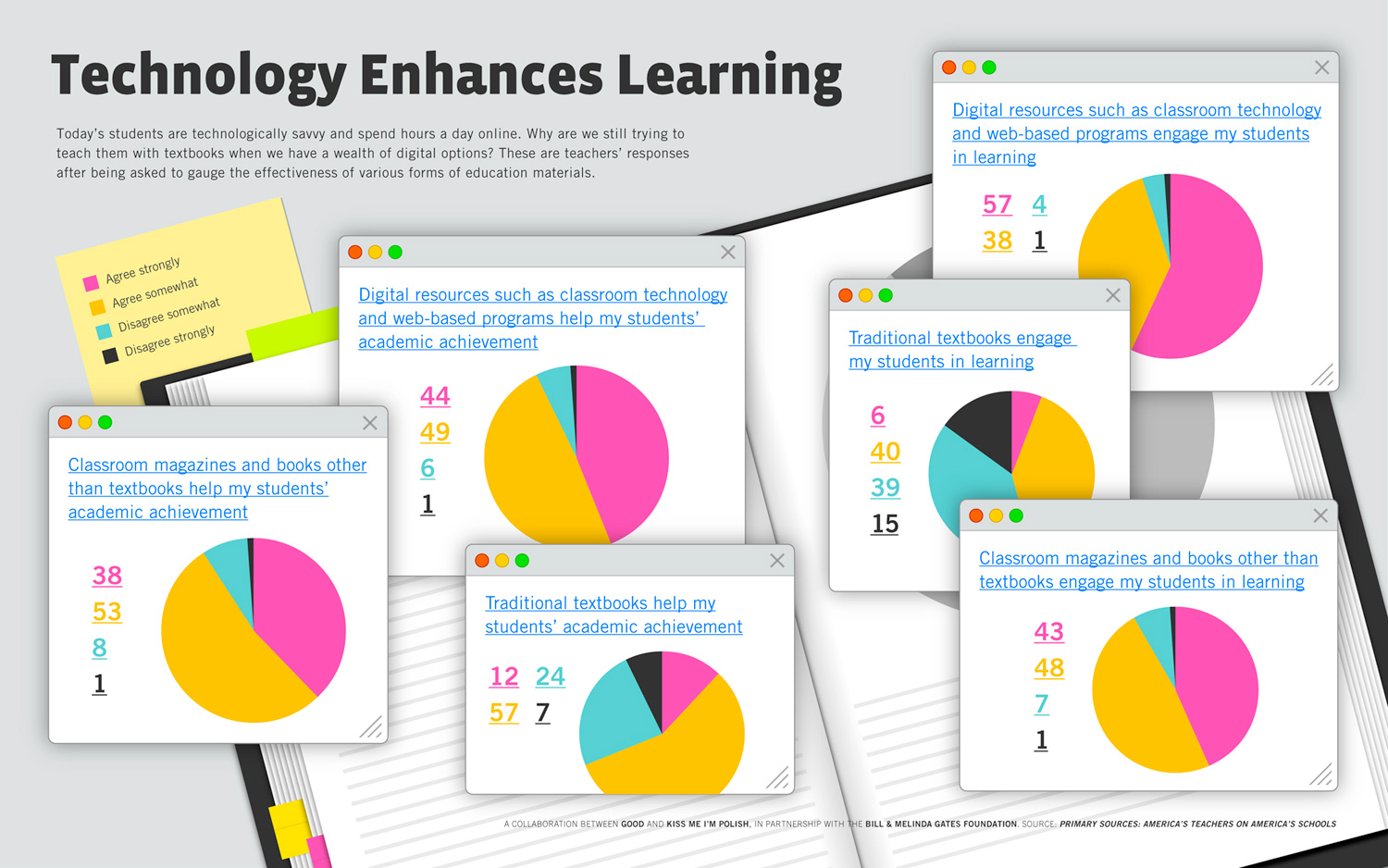
 So, I was looking for some of the latest edtech statistics for a project I’m working on when I happened across this infographic published by the Bill & Melinda Gates Foundation using data collected from America’s Teachers on America’s Schools. Even though this info was compiled a few years ago, I would venture to guess that if a similar study was conducted today, the results would pretty much indicate the same: Technology is a useful tool—one that can be a benefit to the learning process.


.jpg)