Friday, April 17, 2015

20 Collaborative Uses of Google Apps for Education (GAFE)

From Matt Miller at Ditch That Textbook

DOCUMENTS

1. Shared notes. Students often have lots of information to share with each other when they work together as a group. By sharing a document with group members, they can all add ideas and resources — and see everyone’s changes in real time. Teachers can use this in committee work and at staff meetings.
2. Rethinking rough drafts. With the comments feature in Documents (and other Google Apps), rough drafts aren’t a paper students submit to a teacher. They’re a process. Teachers can guide students throughout the entire writing assignment so there are no surprises when it’s time to turn work in.

PRESENTATIONS

3. Shared presentations. Create a presentation with one slide per student and give students permission to edit it. Then assign an activity — some quick Internet research, a writing prompt, an image search to find an example, etc. When they’re done, show the presentation on a projector. It’s student work instantly on display.
4. Virtual art gallery. This goes for any creative student work — poetry, video, visual art, etc. Display the work in a presentation via text, image or video. Share the presentation with permission for anyone to add comments, or embed a live version of the presentation in a website for others to see.

SPREADSHEETS

5. Quick “do now” activities. Create a spreadsheet and assign each student a row on it. Ask a question to gauge comprehension of a new concept in class. Students type their answer in the shared spreadsheet but don’t hit “enter” until you tell them. When they do, it’s fast, instant feedback on what they know.
6. Weather/environment lab. Science classes (or any class, really!) can connect with one or more classes in another city, state, province or country and gather data about the weather or environment around them. Log it in a Google Spreadsheet with a page for each location. Compare and contrast the world around you.
7. Sign-up sheets. They’re a necessary evil for many activities in schools. By making and sharing a digital place to sign up, you eliminate paper and make your list accessible anywhere. Create a spreadsheet that can be edited by anyone with the link (using the blue “Share” button).

DRAWINGS

8. Interactive whiteboard. Create a Google Drawing and share it with students, giving them permission to edit. Display the drawing on a projector screen. Students can add text and shapes, draw arrows to important ideas and connect concepts with lines. Everyone can make changes, and anyone can watch — in class or away.
9. Timelines. Students can work together to add text and pictures to mark events on a timeline. When they’re finished, the image can be saved as an image file (JPEG or PNG) or a PDF file. It can also be embedded in a site to share with others.
10. “Add and pass” activity. To spark creativity for the day, have students create a new drawing and add a few elements to it (some shapes, lines, etc.) and pass it digitally to another student (through a shared folder or with a link). View the students’ work in class afterward. These drawings can be used as writing prompts or story starters too.

FORMS

11. “Choose your own adventure” stories. This one can take some serious student planning, but the results are worth it. Using the “Go to page based on answer” feature in Forms, students can work together to create a story where the reader chooses how the story unfolds. Students write the story and give the reader options with multiple-choice questions. I created a Tech Tuesday Screencast on “choose your own adventure” stories to walk you through the process.
12. Exercise or reading logs. There are many things students can log using forms. Teachers gather information using forms. Student data is gathered in a spreadsheet, where it can be sorted and analyzed. Teachers can display any information they see as pertinent to classes for discussion or analysis.

HANGOUTS

13. Mystery Hangouts. Using Hangouts – Google’s video chat service — classes from different parts of the country or the world can play this “guess where we are” game. Find a class (using your own contacts or through this Mystery Hangouts Google Plus group) and video chat using Hangouts. Students ask each other yes/no questions until they guess where in the world the other class is. A Mystery Hangout is a great, fun, engaging activity that more classes should take advantage of.
14. Sharing learning. After you’ve had a Mystery Hangout, continue that connection between the two classes. Connect and share what each class has been learning — or share in the same lesson across many miles. Ask questions. Reflect. Add information. Use each other as a resource. It’s a great way to connect your classroom to the world.
15. Guest speakers. Can’t afford to fly in an author, researcher, professor, historian or scientist that’s an expert in what you’re studying? Try to arrange a Google Hangout. Even a short Hangout can make a long-lasting connection with students. All speakers need is a webcam, an Internet connection and some time. You never know if they’ll do it until you ask!

SITES

16. Share and discuss student work. By creating a site for student work — either individual student ePortfolios or a class site — you’re giving your students’ hard work a home online. You also give it a global audience. Anyone in the world can find and comment on their work. Sure beats writing for just the teacher — an audience of one.

MODERATOR

17. Share (and vote for) project resources. Students can use Moderator – a place for posting ideas and conversation — to list sites, articles and ideas for a collaborative project. After gathering, they can use Moderator’s voting capabilities to identify the best resources that need to be used.
18. Take a quick poll. Students can add their ideas on any topic to a Moderator session. As ideas are displayed, they can also vote for which idea they like the best. In a matter of minutes, thoughts can be gathered and a decision can be made.

OTHER APPS

19. Kaizena. By adding Kaizena (click the red “Create” button and click “Connect more apps” to find Kaizena), teachers and students can add voice comments to documents in Google. Students could add their thoughts verbally on an article posted as a document, or anyone in your city, state, province or country — or around the world — could add his/her voice to classroom discussion.
20. Cacoo. Cacoo helps users create flow charts, mind maps and other graphic organizers. It’s easy to use and allows students to create visually appealing versions of the ideas in their heads. They can share their visual representations with others or work together to show their thoughts.

Monday, April 13, 2015

Week 37: GAFE Summit Indiana

Google Apps for Education Summit at Franklin Community High School
April 11-12, 2015

Here is the Conference Schedule.  Many of the links include the presentation notes or Google Presentation.

Matt Miller from Ditch That Textbook
More notes from our two days there will be coming soon!
Tim and Julie Arnold at a Google Hangouts session


Here is the link to this session!


Thursday, April 9, 2015

Should I Post A Selfie: A Guide For Students and Teachers

the selfie phenomenon
OK, so who can’t identify with the modern social media craze known as the selfie? Yep, taking self-indulgent pictures has become so popular that the term selfie was even officially added to the Oxford English Dictionary last year.  These types of photos seem harmless enough, right? After all, what’s wrong with sharing a little love of one’s self?
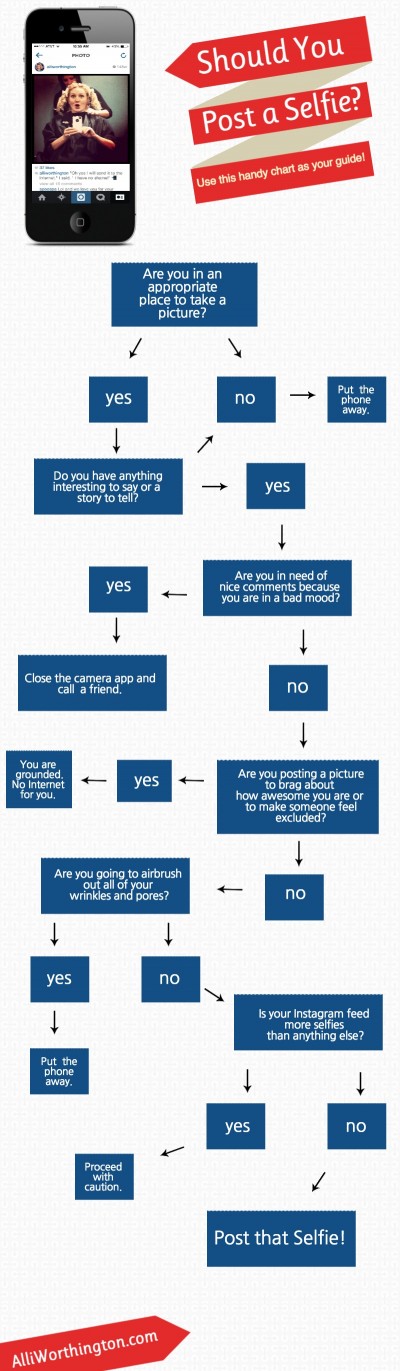
Well, before you (or your students) jump on the latest bandwagon and potentially expose yourself to approximately 2.4 trillion Internet users, think about this: Just because you can snap a selfie, does it mean you should? Check out the infographic shown below for some advice.
Should-You-Post-a-Selfie
Classroom Connection:
Share this flowchart with students to encourage them to think before they snap and click!
A shout-out to AlliWorthington.com for creating and sharing this very useful and relevant infographic!

Wednesday, April 8, 2015

Transpose Google Form Submissions for Easier Reading

Read Google Forms Submissions Easier Using the Transpose Formula

Sometimes it is hard to read people Google Forms submission because you have to scroll so far. I have found that sometimes transposing the responses makes it easier for me to see what each person has submitted.


Here is a short video tutorial to show you how to use this formula.


From Kelly Fitzgerald, The EdTech Nut

Tuesday, April 7, 2015

Try Synergyse

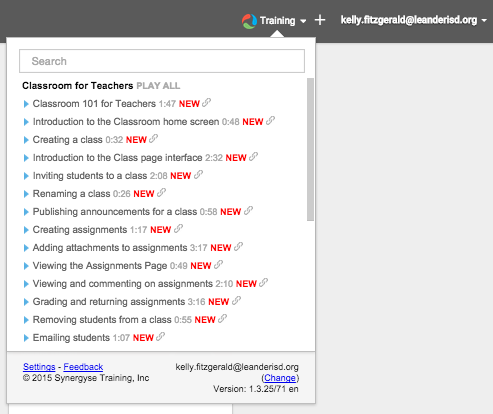
Synergyse
Type: Productivity
Summary: This is a must have extension for anyone who is a Google user. It will give you interactive, in application training for the Google tool. When enabled it will give show the Synergyse icon, simply click on the icon and it will show you all the video tutorials for the tool. 


From Kelly Fitzgerald, The EdTech Nut

Monday, April 6, 2015

Week 36: Picture in Picture Viewer

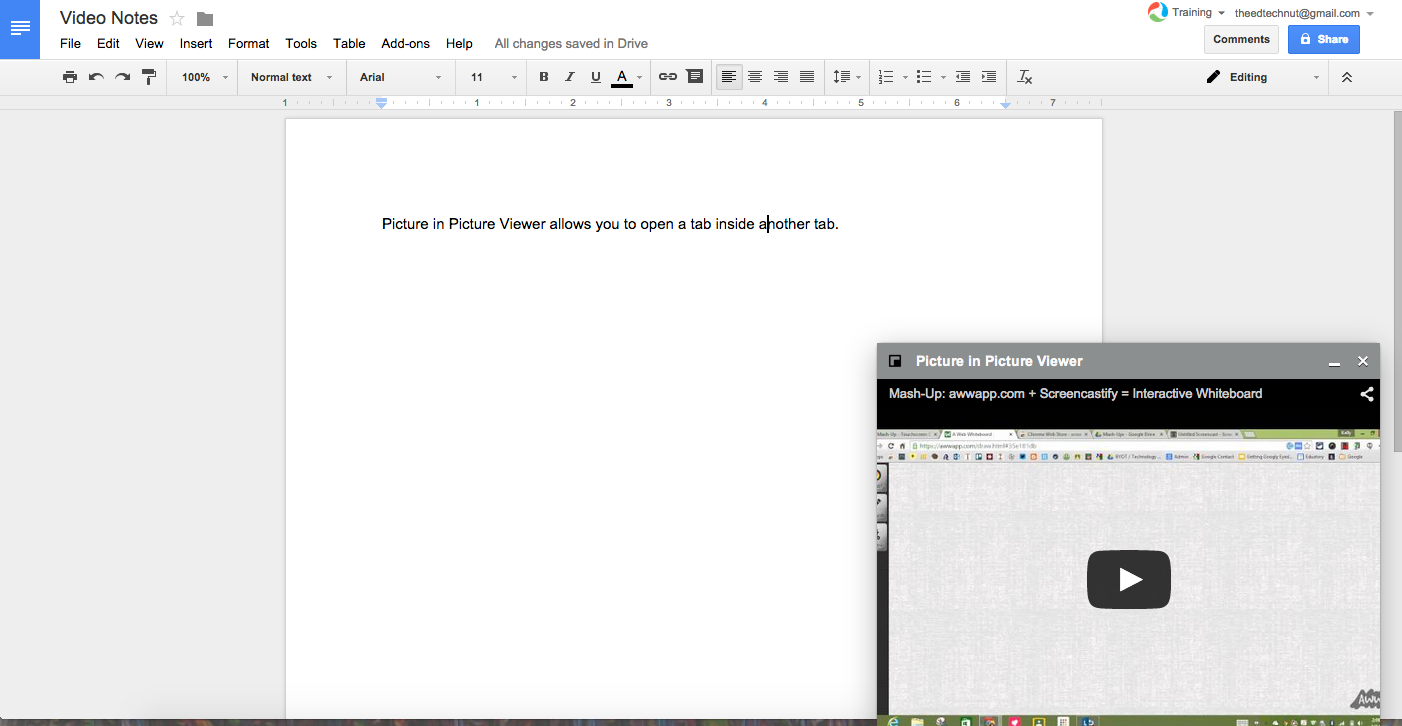
Picture in Picture Viewer
Type: Productivity
Summary: This allows you to have a tab open inside another tab. This is great for watching a video and taking notes, having your Google Hangouts window open while working, and more. You must enable panels for this extension to work. To do this follow these steps:

  1. Go to chrome://flags/
  2. Search for 'enable flags' using Control/Command + F
  3. Click enable under 'Enable Panels'

From Kelly Fitzgerald, The EdTech Nut

Saturday, April 4, 2015

5 Ways to use Word Cloud in the Classroom

How to Use Word Clouds with Students

Photo Courtesy of flickr and Sue Waters
Far from just an assessment tool, creating word clouds can be useful in promoting critical thinking, relationship building, and even as a great kick-starter. To help you get started with this wonderful tool, we’ve put together a few of our favorite ideas on how to get the most from word clouds in your classroom.

1. Help Students Improve Their Vocabulary

As educators, we’re well aware that words are the building blocks of comprehension and cognition. In fact, research shows that students who have broad vocabularies achieve better scores on standardized tests and classroom assessments than students who have limited vocabularies.
Word clouds are an excellent way to help our students develop their vocabulary. And while the benefits of this will go far beyond ELA, it’s certainly a great place to start.
One Edudemic reader commented on the previous version of this article to explain how she used word clouds as a way to encourage her students to come up with a bank of synonyms and antonyms that could be used when approaching particular topics.
This method is particularly useful when analysing characters in books. For example, how many times have you seen Scout from To Kill A Mockingbird referred to as brave? Wouldn’t it be nice to see her called courageous, bold, dauntless, or unafraid?
Ask your students to write a list of traits for characters in the novel you’re studying. Then, ask them to use a thesaurus to come up with a list of synonyms, and feed them into a word cloud generator to create an excellent point of reference. You could do the same for antonyms, too.
It doesn’t have to stop at characters, either. Use word clouds to show synonyms of overused words like “said” and put them up around the classroom for constant referral.

2. Use Word Clouds As A Self-Assessment Tool When Writing

Using peer and self-assessment in the classroom have many benefits, including helping students take responsibility for their learning, encouraging engagement with assessment criteria, and boosting reflection on their own performance. But did you ever consider including the use of word clouds in these all-important tasks?
As we’ve previously established, a broad vocabulary is great, but sometimes students will get caught up using so many words that they don’t really say anything at all (that episode of Friendswith Joey and the thesaurus springs to mind).
Word clouds are a great way to help your students develop a carefully considered vocabulary, so that they’re able to use words that are truly fit for purpose.
One way of doing this is by having your students make a short list of the main ideas they’re trying to get across in an essay that they’ve written. Then, have them plug their essays into a word cloud generator so that they can see whether these ideas actually came across as important (in the sense that they’re oft-mentioned).
Once they’ve done it, they can cross check these lists to see if what they thought they were writing about actually made it into their writing.

3. Use Word Clouds As An Activating Strategy

This tip comes from another one of our readers, and is, we think, a particularly useful and innovative way to use word clouds. How? In activating strategies.
The importance of tapping into prior knowledge should never be underestimated in the classroom, because it helps students to make relevant connections to the new information they will be learning. Word clouds, then, can be used to brainstorm words that students think are relevant to a topic they are being introduced to.
Ask your students to write down anything they can think of that might be related to a subject or even a concept. This will stimulate their thinking, and the resultant clouds can then be revisited at the end of a topic, and either amended or added to according to their knowledge.
Your class could also work together to come up with two separate clouds at the beginning of a new project, illustrating what they think they know, and what they want to know. Each student should submit a question as an “entrance ticket” (another great tactic for boosting engagement) and these can then be referred to throughout the learning process, and then again at the end. Naturally then, it’s time to create a “what I learned” cloud, creating a quick and easy resource for revision purposes.
This can also be done backwards, if you like, and is a great way to encourage critical thinking. Another reader commented with this useful word cloud tactic:
“Many word cloud generators allow users to ‘remove’ words. This allows either teachers or students to create word clouds about any subject (famous person, country/province/state, element on the periodic table), and then remove the key identifying words. The object then is to have others identify the subject and organize the words in the cloud.
For example, go to website and collect hundreds of words about 10 U.S. states. Select all of the words on the site and then copy and paste them into a word cloud. Remove key words (state name, capitol city, etc.) and you have a great activity for kids to do some critical thinking.”

4. Use Word Clouds As A “Getting To Know You” Tool

A great activity at the beginning of the year is having your students use word clouds to get to know each other, your subject, and even you! This is particularly good for shy students, who might find it easier than standing up and introducing themselves at the beginning of the year.
Ask each student to write a list of words to describe themselves: what they like, what they did over the summer, things they’re good at, things they’re interested in, etc. Once they’ve fed these lists into a word cloud generator, they can be used to demonstrate to others what they’re all about, and for students to see what everyone else is all about, too. This is a great way to challenge preconceptions, something that can definitely prove useful in the classroom.
To further this activity (particularly for SEL) you could try asking students to give each other positive adjectives which can be collected and collated into individual word clouds. These could then be hung up so that everyone can see them, as a constant reminder of each person’s good qualities for a great confidence booster.
As well as for getting to know themselves and each other, you can also use word clouds to set your expectations. At the beginning of the school year, ask your class to help you come up with a list of classroom rules and interpersonal expectations (feel free to add your own where you see fit!). Plug these into a word cloud generator and you’ll have a visual reminder of what is expected in your classroom each day.

5. Help Your Students Understand Assessments

When it comes to assessments, half the battle is making sure your students understand what they’re being asked, and once again, word clouds can help them do this.
Start by handing over a rubric that articulates your expectations and lists assessment criteria, as well as describing levels of quality from excellent to poor. Make a word cloud from this document, but keep it from your students until they’ve completed the following task.
Ask your students to each make a list of the key words from your rubric, demonstrating what they understand the assessment criteria to be. They can then each put these lists into a word cloud, which can be compared and contrasted with yours so that they’re able to see where they’re lacking in understanding.
Have them use your word cloud while they are working, or ask them to look at their work (or a peer’s) alongside it before handing it in.
From Edudemic