5 Good Tools for building Classroom Websites
5 Good Tools for creating Multimedia Quizzes
5 Good Tools for creating Multimedia Textbooks
Friday, January 16, 2015

Wednesday, January 14, 2015
Great First Night! The Chromebook Roll-Out!
What an incredible team we had representing our school last night!


Sunday, January 11, 2015
Week 24: Quick and Easy Tools to Find Credibility of a Website
From Kelly Fitzgerald the EdTech Nut:
Finding credible resources on the web is no easy feat. Anyone with access to the internet can publish information on the web. So, how do you and your students know who to trust? I am going to share some easy and quick tools teachers and students can use to check if a website is credible.
If you conduct a search on the web for Martin Luther King, Jr. one of the top websites that shows up is martinlutherking.org and next to the title of the site it says 'A True Historical Examination.' A student is going to see the word true and if they are not taught to check credibility they are going to get sucked in. Unfortunately, this site is NOT a true examination and in fact is a false front for a racial organization.

Here are two quick and easy tools you and your students can use to find out if you can trust a website.
Tool #1: Easywhois.com The first tool is a website called easywhois. Easywhois.com is a site where you can look up information on who registered the website.
To conduct a search on easywhois.com enter the website in the search field (leave out the http://www part of the URL). Make sure it is on whois lookup and hit enter. Any and all information on the site will come up. Use this information to find out more about the author of the site to see if it is in fact a site you can trust.
.png)
When you conduct an easywhois search on martinlutherking.org it shows that the site was registered by a man named Don Black and an organization called Stormfront. I did a quick Google search on 'Don Black Stormfront' and found that Don Black is a white supremacist and Stormfront is a white pride organization. I went to the Stormfront website and on the home page it states, "We are a community of racial realists and idealists." Can you really believe a website on Martin Luther King written by a white pride organization?
It took me a matter of minutes to find out that this website is not one I can trust, nor find credible. I would definitely not recommend this site to students.
Tool #2: WOT (Web of Trust) Chrome Extension
If you know me or follow my blog then you know I am a Chrome extension freak. This is an extension that I recently discovered on Twitter. The WOT extension helps you find out if a website is credible based on user reviews. When you go to a website the WOT extension will turn a specific color. The color will denote the amount of trust this site has been given based on users' ratings.
 If you land on a site that has a poor or very poor rating a pop-up will appear giving you a warning. The warning shows you the trustworthiness and child safety rating and lists the issues that other users have with the site. You have to click on the 'go to site' link to bypass the warning.

You can also click on the WOT extension from any website to see the rating, as well as rate the site yourself. When you give a rating you must give your reasoning for the rating. There are four categories to choose your reasoning from: positive/neutral, questionable, negative, and other users' opinions.


WOT also has a website where you can conduct a search, but I love the fact that the extension will warn me when I land on a questionable site.
Teaching students how to properly conduct research is important and checking the credibility of a site should be a top priority. Prior to students conducting research, give them some credible and not credible websites and ask them to use the above tools to check the sites.
If you conduct a search on the web for Martin Luther King, Jr. one of the top websites that shows up is martinlutherking.org and next to the title of the site it says 'A True Historical Examination.' A student is going to see the word true and if they are not taught to check credibility they are going to get sucked in. Unfortunately, this site is NOT a true examination and in fact is a false front for a racial organization.
Here are two quick and easy tools you and your students can use to find out if you can trust a website.
Tool #1: Easywhois.com The first tool is a website called easywhois. Easywhois.com is a site where you can look up information on who registered the website.
To conduct a search on easywhois.com enter the website in the search field (leave out the http://www part of the URL). Make sure it is on whois lookup and hit enter. Any and all information on the site will come up. Use this information to find out more about the author of the site to see if it is in fact a site you can trust.
It took me a matter of minutes to find out that this website is not one I can trust, nor find credible. I would definitely not recommend this site to students.
Tool #2: WOT (Web of Trust) Chrome Extension
If you know me or follow my blog then you know I am a Chrome extension freak. This is an extension that I recently discovered on Twitter. The WOT extension helps you find out if a website is credible based on user reviews. When you go to a website the WOT extension will turn a specific color. The color will denote the amount of trust this site has been given based on users' ratings.
You can also click on the WOT extension from any website to see the rating, as well as rate the site yourself. When you give a rating you must give your reasoning for the rating. There are four categories to choose your reasoning from: positive/neutral, questionable, negative, and other users' opinions.
View site rating from others
Rate the site
Teaching students how to properly conduct research is important and checking the credibility of a site should be a top priority. Prior to students conducting research, give them some credible and not credible websites and ask them to use the above tools to check the sites.
Thursday, January 8, 2015
VideoNot.es for Note Taking in a Flipped Classroom
From Ken Halla's US History Teachers Blog:
Normally I ask my students to split their screen, but this relatively (it came out last April) new app called Videonot.es that does that for you, putting the video on the left and the notes on the right. It is then synced with Google Drive so it automatically (if you approve it to do so) puts the notes in your Google Drive folder. You will also note that whenever you begin taking notes, it shows where you are in the video and if you click on that line of the notes, it will take you back to the relevant place in the video.
It is also available for Google Apps so your students can get it in the free or paid Google Drive.
Above is a video showing you how to use it.
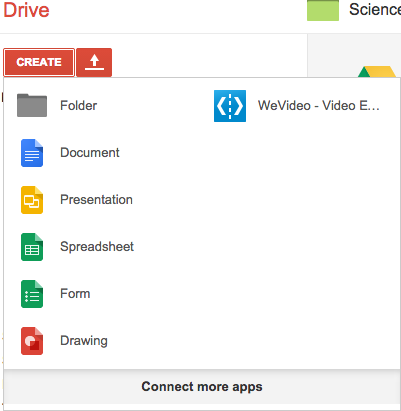
Normally I ask my students to split their screen, but this relatively (it came out last April) new app called Videonot.es that does that for you, putting the video on the left and the notes on the right. It is then synced with Google Drive so it automatically (if you approve it to do so) puts the notes in your Google Drive folder. You will also note that whenever you begin taking notes, it shows where you are in the video and if you click on that line of the notes, it will take you back to the relevant place in the video.
It is also available for Google Apps so your students can get it in the free or paid Google Drive.
Above is a video showing you how to use it.
A ThingLink example
ThingLink is an app that allows you to take a picture, image, video,etc. and add clickable targets to it with information for your students. I chose this example because it may be useful for our students in the near future! Just scroll/mouse over the image below and the information will appear! Below the image is a video showing how it works.


Tuesday, January 6, 2015
Week 23: Doctopus and Goobric: Grading Google Classroom Assignments

Google Classroom: Create and Assignment and Attach a File
How to create an assignment and attach a file:
This video shows how to attach a file for students to complete. you can also attach it so students can just read it or edit it together:
This video shows how to attach a file for students to complete. you can also attach it so students can just read it or edit it together:
More Resources for Understanding Google Classroom:
How to Introduce it to Students:
follow these instructions or share this link with them
http://piedmontpd.weebly.com/lesson-ideas/student-introduction-to-google-classroom
follow these instructions or share this link with them
http://piedmontpd.weebly.com/lesson-ideas/student-introduction-to-google-classroom
Subscribe to:
Posts (Atom)